
Hey guys!
I’ve had a productive day today. I started off this morning by doing lots of paperwork. I am happy to say that my invoices, expense/revenue tracking, and mileage tracking are all up to date! I have booked a half day each week into my calendar so that I remember to stay on top of this stuff because when I am busy baking in the kitchen, it is really easy to forget!
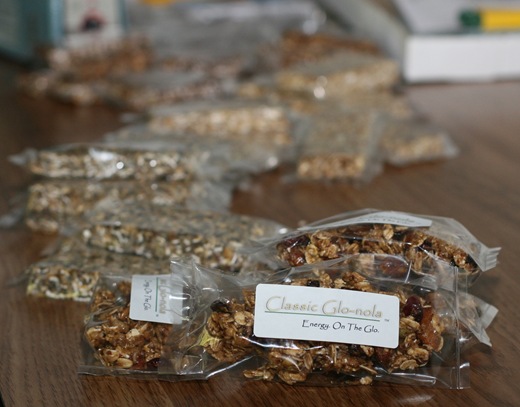
I also baked up my orders of the day. Zen, Classic, Heaven, and Chi Glo Bars plus two batches of Glo-nola. I also tested out some new Glo-nola, so I am throwing in these free samples into my orders today. You just never know what goodies I am going to toss in! ;)
I never told you what my newest obsession is!
No matter how much I stuck behind my old paper calendar, a couple weeks ago I came to the conclusion that it just wasn’t going to cut it anymore. My life is just too crazy to be able to fit everything onto a tiny square each day.
Way back in February, I gave Gmail Tasks a whirl. I wasn’t happy with it because it was just a very simple list and I often forgot about it.
Then in March, I tried Todoist. I initially liked it, but after using it for about a month I decided it wasn’t for me. I just didn’t like not being able to see the calendar in front of me (I believe it lists tasks vertically, list-style). I am such a visual person and I love seeing a full month at a glance (in order of when the events occur!).
After Todoist, I was so discouraged that I went back to my tried and true paper calendar format.
Oh boy. Why didn’t any of you try to put an end to this beast!?
How shameful!
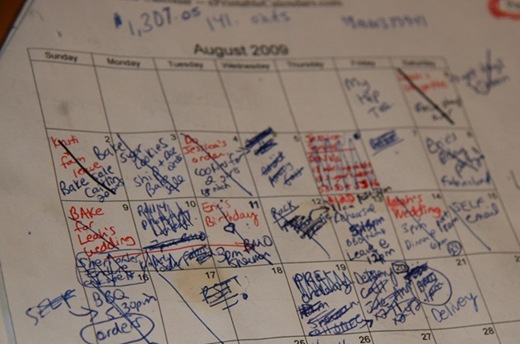
The problem with this pathetic little calendar, I’m sure, is quite obvious. There is barely enough space to write my workout let alone orders and other life events.
After seeing Caitlin’s awesomely organized Gmail Calendar, I decided to give it another whirl. I used it briefly in university for a while (I synced my outlook with Gmail calendar) and I had good success with it.
So at the beginning of September, I took the plunge. I made a plea on Twitter asking for help of course.
Many of you came to my rescue, telling me all about the wonderful thing that is G-cal (as I like to now call it).
And because I was so completely confused for the first half hour or so (ok, ok, it was more like a week!) I thought I could provide some step by step instructions on how I started this beast up.
How To Rock G-Cal
Step 1: Get a Gmail account if you already don’t have one. It is the best email program out there! I have 7,900 emails in my inbox and I’m not even close to going over my limit. *evil cackle* Remember when Gmail crashed last week?? Yup, that was all me baby.
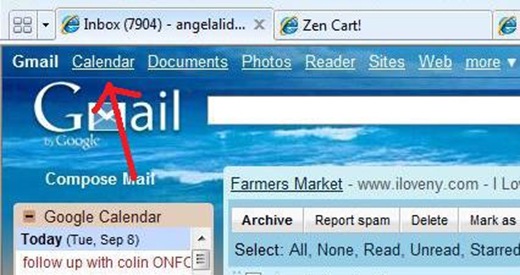
Step 2: Once you are logged into your Gmail account, click on the Calendar link at the top left of the window.
Step 3: Under the My Calendars box, click on Settings.
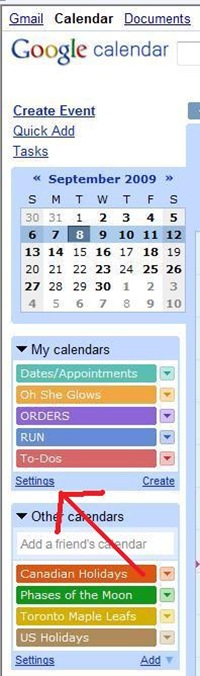
Step 4: Click on Create New Calendar.
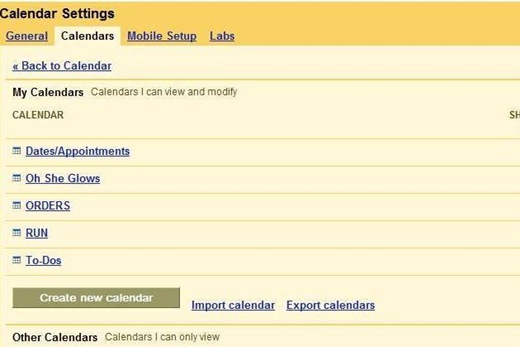
Step 5. Now here is where I got confused. You need to create a separate calendar for each category. Think of each calendar as its’ own TOPIC or category. For example, I created a calendar for running, Oh She Glows, Orders, To-Dos, etc.
Add in Calendar Name, description, time zone, country, etc and then click Create Calendar at the bottom. You can share the calendar with someone too. I entered in Eric’s email so I could share my dates/appointments calendar with him. He’s already told me he is never going to look at it. bahaha. A gal can dream, right?
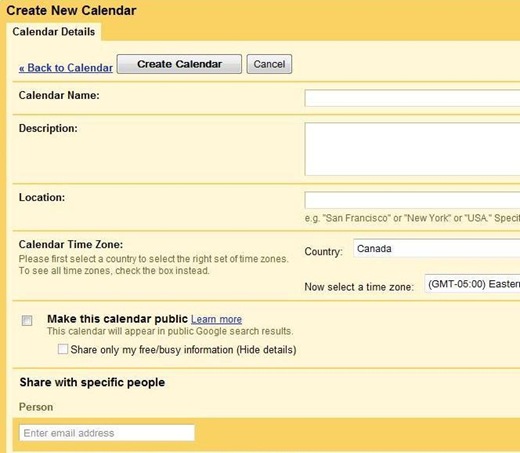
You will need to repeat Step 5, for as many calendars as you want. The best part of all is that Gmail integrates the calendars for you, so all of your dates appear colour coded in one calendar.
Step 6: After you have created all of your calendars (or categories), click on the little arrow beside each calendar to edit the colour you want it. This was the fun part!
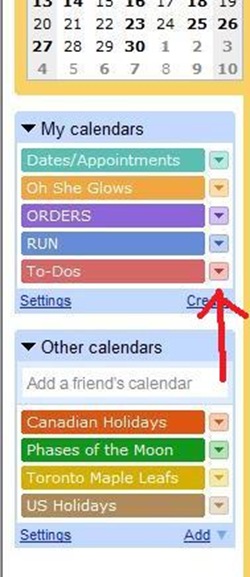 Step 7: Now click on the calendar and add in your to-do’s by simply clicking on the date you want. This will pop up:
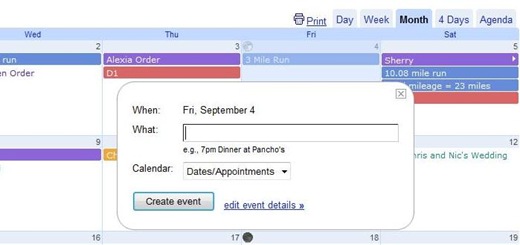
Fill in the ‘What’ and then Select what Calendar it is for. You can click on Edit event details if you want to set a reminder that will either pop-up or email you. This feature is very helpful!
I now track all my running mileage + totals, Oh She Glows to-do’s, Orders, appointments, and basically anything that pops into my head! ;)
And there you have it.
G-Cal has a new feature that you can add in Sports Schedules, so of course, I added the Toronto Maple Leafs schedule. ;) I also added Canadian + US Holidays and the Phases of the Moon.
Super fun! :)
Any other G-Cal lovers out there???






Sketchie says, ‘Best. Bed. Ever.’

See you tomorrow for the chia seed giveaway winner and an exercise fear I got over today!






Thank you for this! I’ve been using different calenders. One for work, and one for running/workouts. Now, I’m convinced I must consolidate ASAP!
you can share them too! so when I was working i’d put in what days I worked plus other things we had (furlough days, trips, sporting events) into a gcal and then i could see it, and so could my fiance… it saved a lot of “wait, when do you work?” conversations…
I am beyond obsessed. I love the colored tabs so I can distinguish among classes, teaching, group fitness classes I teach, personal tasks, & my personal workouts. I am constantly updating it. I actually wasted time today cleaning it up and adding the assignment due dates for the undergrad class I teach instead of reading my class tomorrow night…eeek!
Good luck with getting organized! Looks like you’re doing well.
I LOVE GMAIL CALENDERS!
Angela this is fantastic, sharing G-Cal love is great. I currently do what you do also, would love in the future to see how people work the task menu and use with Google Documents… or perhaps some of the Lab stuff!
I totally love my Google Calendar and use it a TON. I also use it to email myself reminders of things. However, how do you handle the “checking” things off the calendar once you’ve done them? I don’t see how I can use it fully as a to-do list…
When I check things off I just delete it when it is complete. I’m sure there is a better way though? Because then there obviously isn’t a fun tracking of everything you completed!
I wonder if you could make another calendar color for “completed” tasks and change it to that? Like gray or something?
You can integrate task in Google Calender, which I think works wonderful. Check ‘tasks’ in calender settings > calenders. Now, if you click on a certain date, you can choose (at the top) between event or task. If you choose task, you will get a check box in your calender.
All these task will automatically appear in your normal task list (in Gmail or on the right hand side in Calender, when you click ‘tasks’ in the upper left corner in Calender). You can also add tasks there (in the task list you used before), by giving them a date and they will pop-up in your calender.
If you want to separate your to do’s which have a deadline form other ones which don’t have a deadline, just make another list in the lower right corner in ‘tasks’ (either in Gmail or in Calender). All the tasks that you add to Calender, will go to the first, original task list (the one probably called Angela’s list), and you can add the other ones to a new list.
I hope this makes sense to you, as it is a bit confusing to explain like this…
O, and being the total G-Calender nerd that I am: If you click on the name of a specific calender in the box on the left where they are all listed, you can make all those appointments you put under there disappear.
I am ADDICTED to Google Calendars. I have my own calendar, a calendar for school, a calendar for me and my Fiance to share AND I’m linked to his calendar so I can see what he has going on. It is AMAZING.
I just started using g-cal this school year and I love it!
It cannot be denied that Sketchie looks adorable in the box top.hehe…cc
Ummm you have almost 8,000 emails – that’s crazy! Love the tutorial, G-cal does make a bit more sense now. :)
This was soo helpful I totally just redid my google calendar!
Ive never used googlecalendar, but thanks for the blow by blow, glow by glow :), tutorial. Very helpful! I unfortunately keep most of my to do’s in my head and always feel like an online calendar would actually be more work than just writing it down. But that’s just my flow and I am so glad it helps you!
Go to the pet store and pick up some really good catnip. It will be a bit messy but who cares. Lift the cushion out of the kitty bed and put some nip there and then sprinkle some on top. Also if he has a fav toy put it in there. He will start playing with his bed because of the catnip. To get him to lay in it put the bed on the couch beside you and put him in his bed. Pat him the way he likes best,ears, belly, what ever it is he likes. Also as he likes to play turn the bed upside down on him and play some cat and mouse. My cats have soft beds and they do lay in them but they also love box lids, boxes and baskets.
LOL best of luck with the catbed.
I LOVE G-cal! I’m able to sync it with the iCal on my mac and able to sync that with my iPhone so I’m never without my schedule! It’s perfect and made my life SO much less hectic!
I LOVE G-cal!! Oh my it is a lifesaver. I have categories for school, work, social, general tasks, blog and workouts!
xo
K
I love how I can merge the husband’s G-cal with mine so we always know what’s going on!
Your cat is gorgeous!! What kind is she/he? Love the markings!!
Great post Angela – very helpful!
hmmm I gave the G cal a shot after Caitlin mentioned it as well, I kind of gave up on it too easy, maybe I will try again thanks to your instructions
Great post! I would love to use G-Cal, but I’m at work 9 hours of the day Monday-Thurs, and gmail is blocked. We use Outlook…so I’d have to switch back and forth. Maybe I’ll try it anyway, though!
This is great! My hubby and I live by our Google Calendar. Really, I feel that this has been the saving grace in our marriage. :)
I’m in love for the reasons that two readers above mentioned: syncing with iphone and coordinating calendars with the hubs. Thanks for letting people know about Gcal= very useful tool!